
Online Quiz for Students: How to Build One That Works

You’re refreshing a Google Form at 9:40 p.m. The quiz opens at 8 a.m., and the only time limit on the page is a guess borrowed from the fastest student on last year’s paper test. The questions are decent. The administration is the part that will break.
An online quiz for students fails in familiar ways. One objective gets six items and another gets none. Feedback is a score and a green tick. A very short attempt gets treated as cheating before anyone reads the items.
I would treat the clock as an administration rule you pilot and document. Duration is an audit flag that starts a review, not a penalty you apply on autopilot. Blueprint first, then formats, a limit students can meet, feedback worth reading, a careful pass over the grades, integrity rules, and access checks before the link goes out.
Plan the Quiz Blueprint Before Writing Questions
A Year 9 biology teacher has an hour free and writes twenty questions on cell transport. Half of them ask what osmosis is, just with different wording. The quiz looks substantial. It still can’t show whether anyone can classify a process or explain why a cell shrinks in salt water.
The fix happens before a single stem gets written. The blueprint is a one-page map of what the quiz is supposed to measure, and writing it first is what keeps one objective from swallowing the whole form.
Write the map before the stems
- Name three to five learning objectives. Use verbs a student can demonstrate, such as classify, calculate, or explain. “Understand transport” isn’t an objective. “Classify a process as diffusion, osmosis, or active transport” is.
- Give each objective three to five questions. One muddy item shouldn’t decide the whole judgment. Three short questions on the same skill give you a pattern instead of a coin flip.
- Fix the mix before you draft. For a weekly unit check I use about 60 percent recall and 40 percent application. For a midterm I flip that, because recognition won’t show whether the unit transferred.
- Match the count to the window. Ten to fifteen items fits a weekly retrieval quiz. Twenty-five or more needs a longer sitting and a reason you can defend, not just a longer list.
- Put it on one page. List each objective, its question count, and its format, then check that page against the lesson plan. A calculate item has no place if the lessons never asked students to calculate.
Take cell transport. Three objectives, four questions each, twelve items. Recall covers the vocabulary of diffusion and osmosis in four quick items. Application carries the other eight: classify a described process, predict what happens to a cell in salt water, explain the result. Hand that page to a colleague before the form is built. If they can tell you which objective every planned item serves, the map holds. The same discipline shows up outside school, where realistic MLO test practice questions are organized around stated objectives instead of a stack of near-duplicate items.
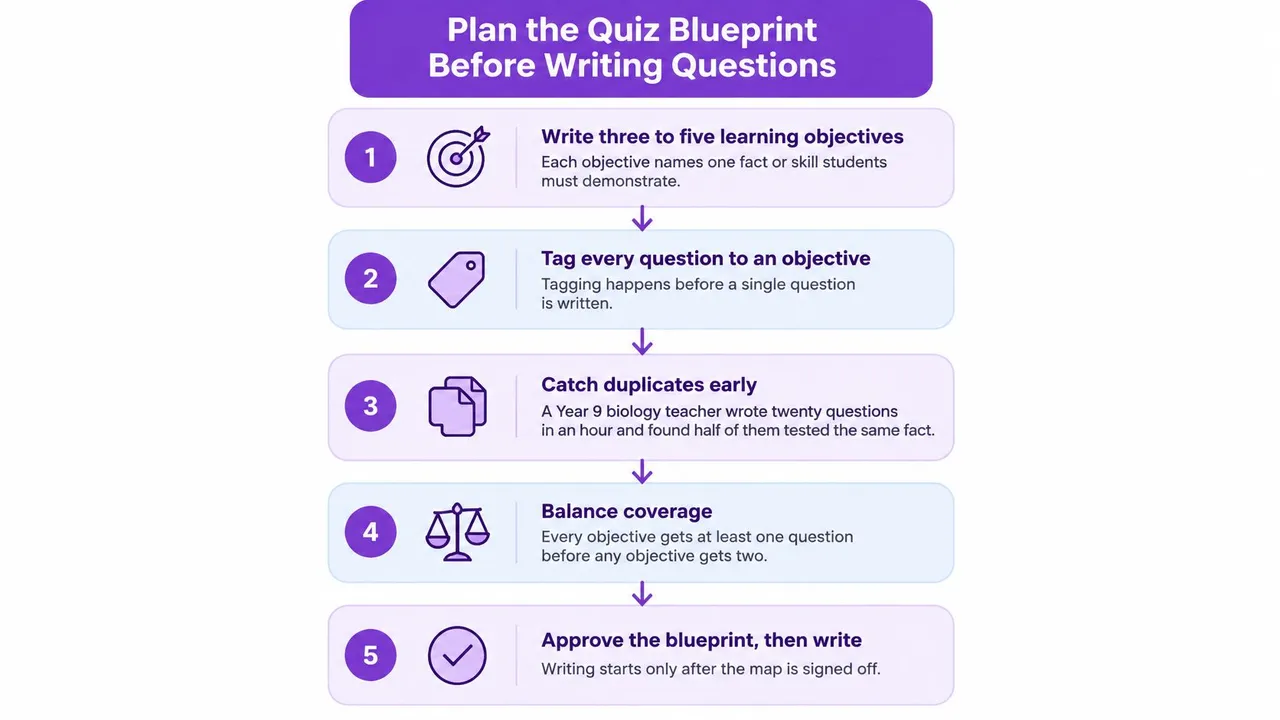
The page also becomes your documentation later. When a very fast finish or a strange score pattern raises a question, the blueprint is what you check the timing flag against: a student who answered every application item correctly in two minutes is a different case from one who skipped them entirely.
Practical rule: If a colleague can’t see which objective an item serves, the item isn’t ready.
Choose Question Formats That Match Each Goal
Auto-graded items hand you a score before the bell. They mostly test recognition. Open responses show the reasoning, and they sit in your queue until you mark them. Pick the format from the objective, not from how fast you want the spreadsheet to fill.
Question formats, grading and typical time per item
| Format | Best for | Auto-graded | Typical time per item |
|---|---|---|---|
| Multiple choice | Recall and recognition of facts | Yes | 30-60 seconds |
| True or false | Checking single claims or misconceptions | Yes | 15-20 seconds |
| Matching or ordering | Pairs, sequences, and processes | Yes | 45-90 seconds |
| Numeric entry | Calculations with a set tolerance | Yes, with tolerance | 1-3 minutes |
| Short answer | Definitions and brief explanations | Partly, by keyword | 1-2 minutes |
| Open response | Reasoning and application | No, manual marking | 3-5 minutes |
How to keep auto-grading honest
Multiple choice works when every distractor comes from a real student error. “Mitochondria” beside three nonsense words doesn’t test anything.
True or false is close to a coin flip if you lean on it. Keep it to one or two claims you know the class mixes up.
Numeric entry needs a stated tolerance. A rounding gap of 0.1 shouldn’t be wrong if you never said how many decimals you wanted.
Short answer should ask for one idea. Keyword matching will mark a correct sentence wrong when you demanded three phrases in a single box.
Two or three formats in one quiz stop students settling into a single guessing habit, and they give you more than one kind of evidence. If the objective says explain, somewhere on the quiz the student has to explain. Picking a term from a list doesn’t count.
Set and Pilot a Time Limit Students Can Meet
The usual mistake is setting the limit from the fastest finish. That student isn’t the class. A limit copied from them turns a knowledge check into a race, and careful readers lose time that has nothing to do with the objective.
Time limits by quiz length with a buffer
| Quiz | Estimated time | Buffer | Time limit to set |
|---|---|---|---|
| 10 multiple choice items | 5-10 minutes | 5 minutes | 15 minutes |
| 20 mixed items | 25 minutes | 5 minutes | 30 minutes |
| 30 items, mostly multiple choice | 15-30 minutes | 5-10 minutes | 40 minutes |
| 5 short answer items | 8-10 minutes | 5 minutes | 15 minutes |
Ten multiple-choice items need 5 to 10 minutes plus a 5-minute buffer, so set 15 minutes. Five short-answer items land in that same 15-minute window, because writing takes longer per item. Twenty mixed items get 30 minutes. Thirty mostly multiple-choice items, at 15 to 30 minutes of work plus a 5 to 10 minute buffer, get 40.
Spacing beats squeezing the clock. In a blended-learning study in Teaching of Psychology, completion of weekly online quizzes was the strongest behavioral-engagement predictor of final-exam performance, and students completing all nine quizzes increased their final-exam grade by approximately 16 points. That supports low-stakes weekly retrieval, with attempts, completion time, and scores kept for comparison with a later exam. It doesn’t prove that timing data alone raises achievement. Very short attempts can mean guessing. Very long ones can mean answer-searching or weak retrieval fluency. Duration also tracks motivation and self-regulation, so use it as an audit flag and as feedback, not as an automatic penalty.
Pilot before you publish
- Give five to ten students or colleagues the quiz under the planned limit.
- Record start time, end time, duration, and whether each attempt was complete.
- Look at where slower finishers cluster, and add buffer there, not at the fast end.
- Check for load or connection problems so a stall isn’t read as a knowledge gap.
- Tell students ahead of time that timing is on. Users are responsible for notifying respondents when timing or monitoring features are enabled.
In setup, you pick your form from Google Drive, then set the duration, start and end windows, visibility, and instructions. During the 14-day free trial, response times for your first 50 respondents are written into your Google Sheet. The field-by-field version is in this guide to set a time limit on an existing form. Write down the buffer, who gets an extended window, and where start and end times live. Fix the single most serious pilot problem before you publish.
Write Feedback Students Will Actually Read
Most students glance at the score and close the tab. A percentage doesn’t tell them what to do on Thursday. Feedback has to earn the next thirty seconds, or it never gets read.
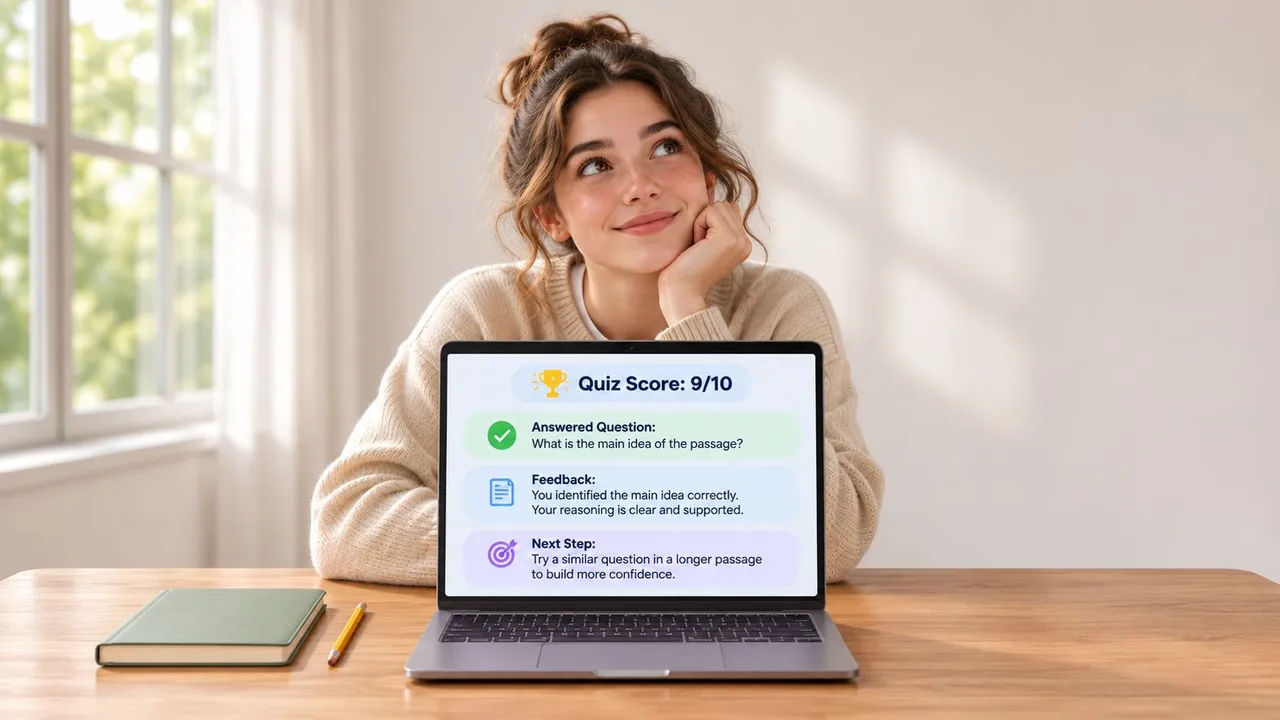
Three layers, in that order
Immediate correctness on each item is the first layer. It points at the questions worth a second look and lets the student skip the ones they already own.
One sentence on the wrong answer is the second layer. Name the misconception. Don’t just reveal the letter. On a gravity item, write that heavier objects don’t fall faster in a vacuum. “The answer is C” teaches nothing a student can use next lesson.
A review path is the third layer. For each objective where the score was low, link the lesson section or a two-minute clip. The student shouldn’t have to hunt the slide deck to find the repair.
Show that feedback at once on a practice quiz. Hold it until the window closes on a graded quiz, or the first finisher becomes the answer key for everyone still working. One retry after review works on a low-stakes weekly quiz. It doesn’t belong on a summative check.
Write the note for the most common wrong answer first. That single sentence covers most of the class.
Read Grades and Timing Data Without Overreaching
A dashboard full of durations looks like proof. It isn’t. Read completion rate and duration together. Either number alone will send you after the wrong student.
Timing signals, likely meanings and next actions
| Timing signal | Likely meaning | Next action |
|---|---|---|
| Very short attempts, answers in under 10 seconds | Guessing or skipping | Review the pattern and check for guessing; do not auto-penalize |
| Very long time on one item | Answer-searching or confusion about wording | Check item clarity and rewrite if many students stall there |
| Many unanswered items at the end | Pace problem | Add a buffer or reduce the number of items next time |
Answers in under 10 seconds are a pattern to review, not a deduction to apply. A long stall on one item is often a bad stem. If many students sit there, rewrite it. A string of blanks at the end is a pace problem, so add buffer or cut items next time.
What extra minutes don’t buy
Timed and untimed online quizzes in economics courses did not significantly change subsequent learning, and another study found that giving students more time did not significantly improve test scores (p = .055), according to research in Online Learning. The timer enforces a common window, a fixed duration, and automatic submission. It isn’t a learning treatment. Don’t read a technical delay as a lack of knowledge. Keep start time, end time, duration, status, and whether the submission was complete so you can check later.
Mark in three passes
- Let the platform mark the objective items.
- Read open responses against a rubric you wrote before the quiz opened. If you want a model of criteria that stay stable across a course, see how units are marked and graded.
- Sample the automatic short-answer marks. Keyword rules score good phrasing as wrong more often than teachers expect.
A readable response sheet on Google Forms starts with a simple setup for Google Forms for teachers. A timing flag starts a conversation or a manual review. It never triggers an automatic deduction.
Protect Quiz Integrity in the AI Era
Most quiz guides stop at formats, randomization, and deadlines. Student behavior has moved past that. A 2025 survey of 1,041 full-time UK undergraduates, published by HEPI and Kortext, found that 92% had used AI in some form, up from 66% in 2024, that 88% had used generative AI for assessments, up from 53%, and that 18% had inserted AI-generated text directly into their work.
Stricter surveillance isn’t the fix I would reach for. Split the rules by stakes.
- Low-stakes weekly practice can allow AI if the student still shows the reasoning. A supervised high-stakes check closes outside tools.
- Ask for an explanation wherever the objective says explain. You’re assessing the learning, not whether a tool was open.
- Use a larger item pool and randomize order and sets so a mid-window screenshot isn’t a full answer key. What reduces sharing is discussed in this piece on why students cheat on timed work.
- If a response looks generated, ask the student to explain one answer aloud or in their own words. Don’t treat an AI detector as proof. False positives are common, and paid tools aren’t equally available.
Say the rule in the instructions before the window opens. Time pressure that mostly measures who has a faster tool isn’t a valid score.
Accommodations and Access Before You Publish
Moving a paper test onto a screen doesn’t make it fair. UK government research on on-screen assessment finds that on-screen assessment can improve navigation and accessibility for some students with special educational needs and disabilities, while still creating risks around fairness, digital readiness, wellbeing, and the loss of formal accommodations. The report warns that institutions may incorrectly assume digital delivery itself replaces adjustments such as extra time, environmental support, or human assistance. Systematic evaluations of those benefits remain limited, so I wouldn’t claim an online quiz is more inclusive.
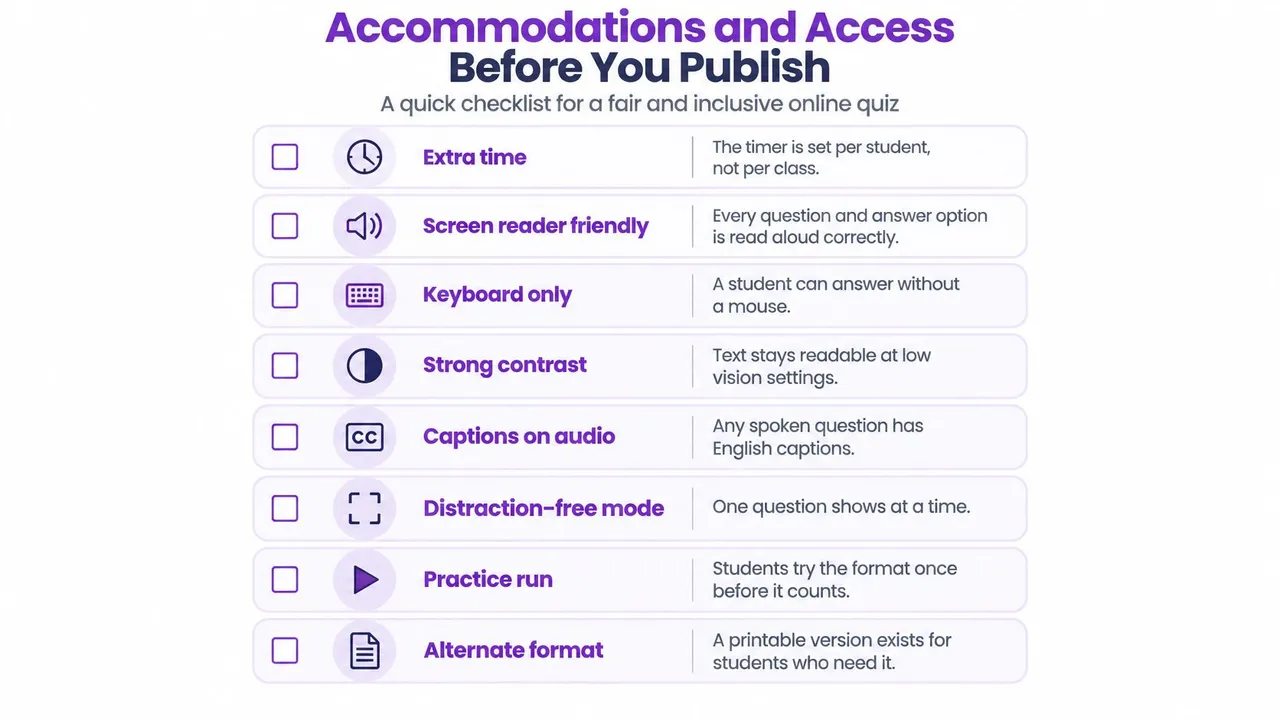
Check these before the link goes out
- Documented extra time: Set extended windows before the quiz opens. Don’t patch them after a failed attempt.
- Screen reader and keyboard: Run the form with a screen reader and with keyboard-only navigation. Every option has to be reachable without a mouse.
- Connection: The limit can’t assume a fast, private network. A stalled load isn’t a wrong answer.
- Fallback: Keep a paper copy or a second window for a student whose connection drops.
- Countdown display: Skip a visible countdown for a student with documented anxiety. A hidden timer can still record duration.
- Who to call: Name a person and a channel, in the instructions, for problems during the window.
A fuller pass over course materials, not just the quiz, is in this accessibility audit checklist for courses. Publish only after that list is done. An accommodation you discover mid-window is already late.
Form Timer adds a countdown, start and end windows, and automatic submission to the Google Forms you already use for classroom quizzes, and it writes start time, end time, and duration next to each response so a timing flag is something you can review instead of guess at. Pilot the limit on a small group first, keep the record, and then open the window for the class. When you’re ready, set it up at Form Timer.
Time your next Google Form
Free to start. Configure a countdown in minutes and see completion times in Sheets.